Simple & Reliable
One-click benchmark. Sequential and random tests with configurable block size, queue depth, and threads.
v9.0.2
Free disk benchmark software for Windows. Measure sequential and random read/write speed of SSD, HDD, and NVMe drives.
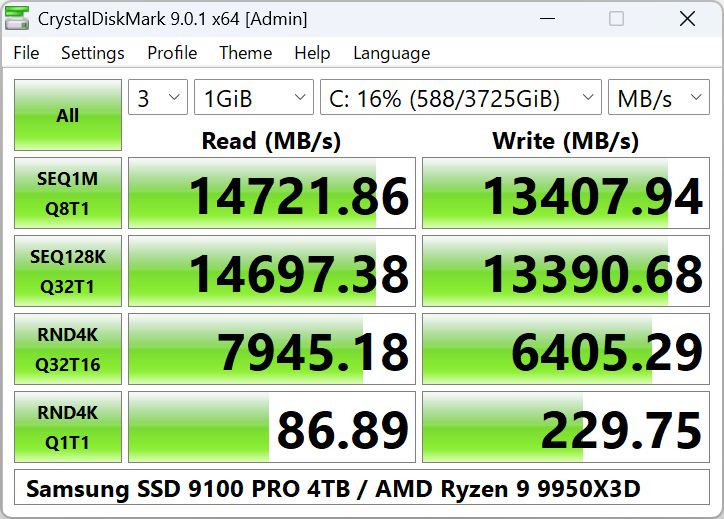
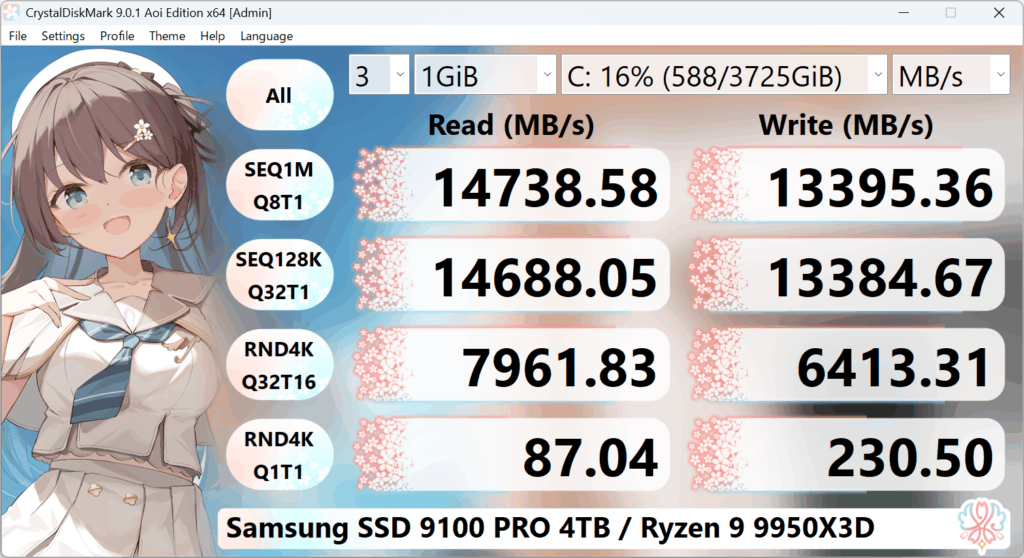
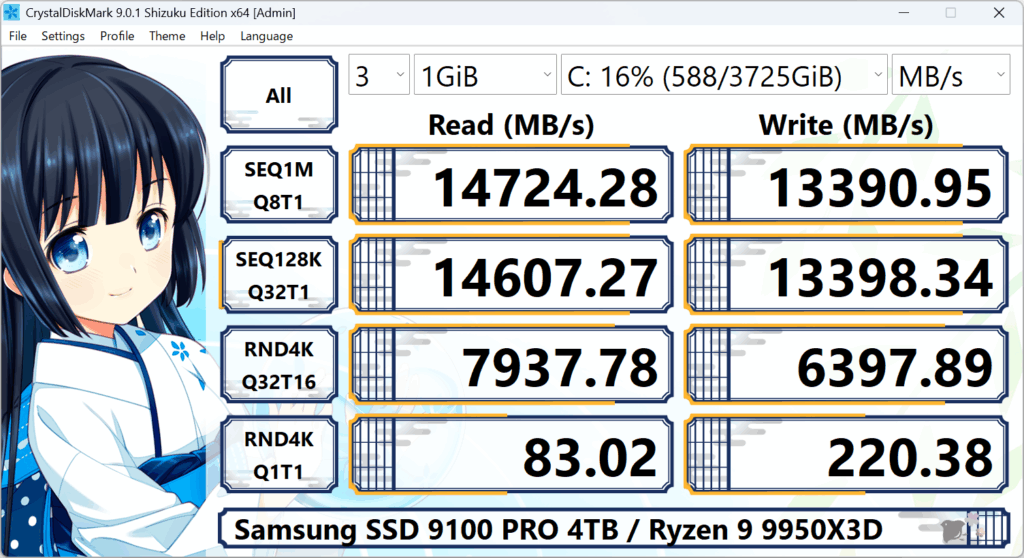
Version 9 brings the same reliable benchmarking with a refreshed interface and better support for modern storage. The benchmark engine uses Microsoft DiskSpd for accurate, repeatable results. You get Peak Performance, Real World Performance, and Demo profiles—so you can stress maximum throughput or simulate typical workloads. All three editions (Standard, Aoi, Shizuku) share the same engine; only the look and themes differ.
One-click benchmark. Sequential and random tests with configurable block size, queue depth, and threads.
Peak Performance, Real World Performance, and Demo profiles. Compare drives fairly.
Standard, Aoi, and Shizuku editions. Themes and multi-language support.
CrystalDiskMark has been the go-to disk benchmark for Windows users since 2007. Here is why millions of users and thousands of hardware reviews rely on it:
Use these as a rough guide. Actual results depend on the drive, interface, and test settings. If your numbers are far below these ranges, check cabling, port, driver, or power settings.
| Drive type | Typical sequential read (MB/s) | Notes |
|---|---|---|
| NVMe SSD (PCIe 4.0) | 3,000–7,000+ | Use Profile → NVMe SSD. Gen4 x4 can exceed 5,000 MB/s. |
| NVMe SSD (PCIe 3.0) | 2,000–3,500 | Common range for Gen3 x4 drives. |
| SATA SSD | 500–560 | SATA III limit ~560 MB/s. Lower = possible cable/port issue. |
| HDD (7200 rpm) | 100–200 | Slower on random tests. Use 1 GiB or smaller test size. |
| USB 3.x external | 100–400+ | Depends on USB version and device. Use small test size for quick check. |
Disk benchmarking measures how fast a storage device can read and write data. CrystalDiskMark runs controlled tests: it writes and reads test files of a chosen size and reports the speed in MB/s (megabytes per second), GB/s, or IOPS (operations per second). Sequential tests use large blocks in order, simulating big file copies; random tests use small blocks in random positions, simulating everyday use and application load. The results help you compare drives, check that a new SSD or HDD performs as expected, or troubleshoot slow storage.
Benchmarking does not fix slow drives—it only measures them. For drive health (temperature, SMART data, bad sectors), use CrystalDiskInfo from the same developer.
Higher sequential speed (e.g. 3000 MB/s vs 500 MB/s) means faster copying of large files, quicker backups, and snappier video editing when moving big files. Higher random speed means faster boot, faster application launch, and a more responsive system when many small files are read or written. An NVMe drive with good random performance will make Windows and apps feel much snappier than an HDD, even if both can eventually copy a big file.
Sequential speed (e.g. SEQ1M Q8T1) tells you how fast the drive can read or write one big file in one go—useful for video editing, backups, or copying large files. Random speed (e.g. RND4K Q32T1) reflects many small reads and writes at random places—this is what matters for boot time, opening applications, and general system responsiveness. A drive can have high sequential but modest random performance, or the other way around. For a full picture, look at both. NVMe and SSDs usually excel at both; HDDs are much slower, especially on random tests.
CrystalDiskMark is useful in many real-world situations. Here are the most common:
Run a quick benchmark to confirm the drive is working at expected speeds and not limited by a bad cable, wrong port, or outdated driver.
Compare results before and after cloning to a new drive or upgrading from SATA to NVMe. Same test settings give a clear before/after picture.
Benchmark the system drive. Low random read/write often explains slow boot, app launch, and file operations. Helps decide if storage is the bottleneck.
Check if a USB flash drive or external HDD/SSD is performing as expected. Use a small test size (e.g. 64–128 MiB) so the test finishes quickly.
Reviewers and system builders use CrystalDiskMark to compare different models. Use the same profile and test size for a fair comparison.
Save results as text or image for support tickets, forum posts, or internal documentation. File → Copy or Save as image makes it easy.
Hardware reviewers and power users rely on CrystalDiskMark to compare SSDs and HDDs. It is one of the most cited tools in storage benchmarks and review articles. The ability to save results as text or image makes it easy to include in reviews and forum posts.
IT staff and system integrators use it to verify new drives after installation, test network or external storage performance, and document baseline performance before and after changes. The portable ZIP version is convenient for use without installing.
When you buy a new SSD or external drive, running CrystalDiskMark once helps confirm it is working correctly and not limited by a bad cable, port, or driver. A quick "All" run with default settings is enough for a sanity check.
If Windows or applications feel slow, benchmarking the system drive can show whether storage is the bottleneck. Low random read/write speeds often explain slow boot and app launch; sequential speed matters for large file transfers.
A few simple steps help you get consistent, meaningful results:
CrystalDiskMark shows labels like SEQ1M Q8T1, RND4K Q32T16. Here is what they mean:
For a quick comparison, look at SEQ1M Q8T1 (sequential) and RND4K Q32T1 or Q32T16 (random). Use the Guide for full settings and profiles.
CrystalDiskMark can use random test data or 0-fill (all zeros). Some SSDs compress data and perform differently with random vs 0-fill, so results can vary. Other benchmark tools may use only 0-fill. If you compare with another program or a review, note which test data was used. You can switch in Settings → Test Data.
After you click "All" and the benchmark finishes, the window shows rows of numbers. Each row is one test (e.g. SEQ1M Q8T1, RND4K Q32T1). The columns show Read and Write speeds. By default the unit is MB/s (megabytes per second)—higher is faster.
For a quick check: look at the first sequential row (SEQ1M Q8T1) and the random row (RND4K Q32T1 or Q32T16). Compare your numbers with similar drives in reviews or with our User Experiences page for typical ranges. If your new NVMe shows only a few hundred MB/s sequential, something may be wrong (e.g. wrong slot, driver, or power saving). If numbers look in line with the drive's spec, the drive is likely working correctly.
You can switch the display to GB/s, IOPS, or latency (μs) from the program. Copy the result (File → Copy) or save as image to share or keep for later.
CrystalDiskMark can benchmark any drive that Windows can use as a volume. This includes:
Internal NVMe (PCIe) drives. Use the NVMe SSD profile for best results. Expect very high sequential and random speeds.
Internal 2.5" or M.2 SATA SSDs. Default profile is fine. Sequential usually around 500–560 MB/s on SATA III.
Internal hard drives (SATA, etc.). Much lower speeds than SSDs, especially on random tests. Use 1 GiB or smaller test size.
USB flash drives and external HDDs/SSDs. Use a small test size (64–128 MiB). Speed depends on USB version and the device.
Mapped network shares. Run CrystalDiskMark without Administrator rights so the network drive appears. Results reflect network + server storage.
Software or hardware RAID arrays show as one drive in Windows. CrystalDiskMark benchmarks the volume as a whole.
CrystalDiskMark is one of several disk benchmark utilities for Windows. Here is a short comparison so you know when it fits:
| Tool | Notes |
|---|---|
| CrystalDiskMark | Free, open source (MIT). Sequential + random, configurable. Uses DiskSpd. Very widely used in reviews. Portable ZIP available. |
| AS SSD Benchmark | Popular for SSDs. Different test pattern and scoring. Results not directly comparable to CrystalDiskMark. Free. |
| ATTO Disk Benchmark | Often used by manufacturers for specs. Variable block sizes. Free. Numbers can differ from CrystalDiskMark. |
| Windows built-in | No built-in disk benchmark in Windows. CrystalDiskMark fills that gap with a standard, repeatable test. |
For fair comparison between two drives, use the same tool and the same settings. Do not mix results from different major versions of CrystalDiskMark (e.g. 8.x vs 9.x).
We’ve put together detailed guides and answers so you can get the most out of CrystalDiskMark:
Profiles, settings, and how to run each test. From first run to advanced options.
Common questions, antivirus notes, network drives, and what to do when something fails.
Real-world results and tips from users. Compare your numbers with typical ranges.
When downloaded from the developer's official distribution, CrystalDiskMark is the genuine, digitally signed software. Some antivirus tools flag benchmark software that does low-level disk access—this can be a false positive. Add an exclusion for the program folder if you are sure of the source. See FAQ for more.
If you run CrystalDiskMark as Administrator, Windows does not show mapped network drives. Run it as a normal user (click No when UAC asks for admin), and the network drive will appear. Full answer in FAQ.
With default 1 GiB and 5 runs, a fast NVMe might finish in 1–2 minutes; a slow HDD or USB can take much longer. Use a smaller test size (e.g. 64 MiB) or fewer runs (1–3) for a quick check. The Demo profile is shorter.
Benchmarking writes data and can use up a small amount of the drive's write endurance. Occasional runs for comparison are fine. Avoid running heavy write benchmarks constantly on a drive you need to keep for many years. See FAQ for details.
CrystalDiskMark was created by hiyohiyo and is part of the Crystal Dew World project. First released in 2007, it has been updated for almost two decades to support new Windows versions and storage technologies (SATA, NVMe, USB 3.x, ARM64). The software is free and open source under the MIT License. The developer welcomes optional support via GitHub Sponsors and the official Crystal Dew World site.
This website (crystaldiskmark.cc) is an independent fan resource. For the full version history and changelog, see our History page.
| OS | Architecture |
|---|---|
| Windows XP / Vista / 7 / 8 / 8.1 / 10 / 11, Windows Server 2003–2025 | x86, x64, ARM64 |
Installer and x64 version do not support Windows XP/2003 (NT5.x). Not supported: Windows 95/98/Me/NT4/2000.
For more details and troubleshooting, see the FAQ & Fixes and User Experiences pages.